
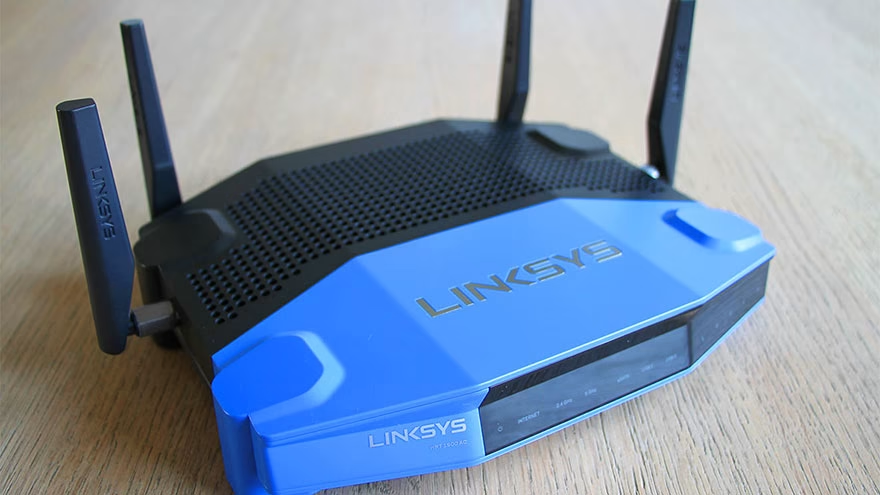
Failure to Associate With Linksys Means the Wi-Fi Handshake Failed
Failure to associate with Linksys usually means your device did not complete the wireless connection process with a Linksys router or mesh node. That can happen before the internet is even involved. The modem may be fine while the laptop never joins the Wi-Fi network.
Association depends on the network name, password, security mode, radio band, signal strength, adapter driver, router state, and sometimes a saved Windows profile that no longer matches the router.
Start with the connection layer. Do not troubleshoot the whole internet until one device can reliably join the router.
Is the Linksys Network Visible?
Open the Wi-Fi list and confirm that the correct SSID appears. If the name is missing, the router may be off, broadcasting may be disabled, the device may be too far away, or the laptop's wireless adapter may be disabled.
Linksys support notes that if a Wi-Fi name is not listed, users should verify router power and basic status before deeper troubleshooting. The official Linksys Wi-Fi visibility guidance is a good starting point for that scenario.
Check another phone or laptop. If no device sees the network, focus on the router. If only one computer fails, focus on that computer's saved profile, adapter, or driver.
This is a different kind of failure from a Linux rootkit failure warning, where the concern is system trust. A Wi-Fi association problem is usually configuration or radio behavior.
Could Windows Be Using an Old Saved Profile?
Windows remembers Wi-Fi networks. If the Linksys password, security mode, or SSID changed, Windows may keep trying old settings and fail before giving a useful explanation.
Forget the network, then reconnect by choosing the SSID and entering the current password. If the router has both 2.4 GHz and 5 GHz names, confirm which one you are joining.
Microsoft's Windows Wi-Fi troubleshooting guide recommends steps such as checking Wi-Fi state, running the troubleshooter, restarting network equipment, and reviewing adapter problems.
A clean reconnect is faster than guessing. Removing the saved profile clears a common mismatch without changing the router for everyone else.
Are Password and Security Mode Compatible?
A wrong password is the obvious cause, but security mode can be less obvious. Older devices may struggle with newer WPA settings, while weak legacy settings can create security risk.
Check the router's wireless security mode and the device's capability. If the router is set to a mode the device cannot use, association may fail even with the correct password.
Wi-Fi Alliance's Wi-Fi security overview explains modern wireless security generations such as WPA2 and WPA3. The practical home lesson is to use secure settings while keeping device compatibility in mind.
Do not switch to open Wi-Fi just to test unless you understand the risk and can change it back immediately. A better test is a temporary guest network with a strong password and clear limits.
Could Distance, Interference, or Band Choice Be the Problem?
Association can fail when signal is weak, crowded, or unstable. The device may see the network name but fail during authentication because the signal drops or retries too often.
Move closer to the router for testing. If the device connects nearby but fails in another room, the problem is coverage, interference, construction material, or band choice.
Try the 2.4 GHz band for longer range and the 5 GHz band for shorter-range speed. Mesh systems can hide that choice behind one network name, so check the Linksys app or admin page if band steering seems confused.
Do not ignore simple physical causes: metal shelves, appliances, thick walls, fish tanks, and router placement near the floor can all weaken a signal.
When Should You Check Drivers and Router Firmware?
If one Windows laptop fails while other devices connect, update or reinstall the wireless adapter driver through the PC maker or Windows update path. Device Manager can show whether the adapter is disabled or reporting errors.
If several devices fail, restart the router and modem, then check for router firmware updates through Linksys tools. Linksys support commonly places power cycling early because many home connectivity problems clear after a clean restart.
Keep the sequence clean. Restart modem, router, and device, then test. If you change five settings at once, you may never know what fixed the issue.
Firmware and drivers should be changed deliberately. Update from trusted vendor paths, not random driver sites.
How Do DHCP and IP Settings Fit In?
After association succeeds, the device still needs a valid IP address. If Windows shows connected but no internet, open the network details and check whether the device received an address from the router, a gateway, and DNS servers.
An address beginning with 169.254 usually means the device did not get a normal DHCP lease. That points toward router DHCP settings, adapter state, security software, or a stale local configuration rather than only a bad password.
Try releasing and renewing the IP address, restarting the adapter, and checking whether the router's DHCP pool has enough available addresses. If a manual IP was set years ago, return the adapter to automatic addressing for a normal home network.
Association and addressing are different steps. A device can join the Wi-Fi signal and still fail to receive the network details it needs to browse.
When Is Factory Reset the Right Move?
Factory reset is a later step, not the first one. It can help when the admin password is lost, settings are unknown, firmware updates failed, or the router has been misconfigured beyond quick repair.
Before resetting, record the current Wi-Fi name, internet settings, guest network, port forwards, parental controls, and any custom DNS or DHCP reservations. Otherwise the reset can create more problems than it solves.
After a reset, use a strong admin password and a strong Wi-Fi password. Avoid reusing an old weak password just because every device already knows it.
Resetting clears settings, not the need for diagnosis. If distance, interference, or a bad adapter caused the failure, the same issue can return after the reset.
Keep a copy of the new settings after the network is stable. The next troubleshooting session will be faster if you know the SSID, security mode, router IP, firmware version, and guest-network state.
Store that note somewhere offline or in a password manager, not on a sticky note taped to the router itself.
What If the Device Connects But Has No Internet?
That is a different stage. If the device associates with Linksys but says no internet, check DHCP, IP address, gateway, DNS, modem status, WAN cable, ISP outage, and whether other devices can browse.
A connection to the router only proves the local wireless link. It does not prove the modem has service or the router has a valid WAN address.
For problems that involve a specific failed device or storage symptoms, use the right diagnostic path. A router issue is not solved by steps for physical HDD failure recovery, and a delivery error needs a guide like decoding email failure notices.
If all devices fail after a router change, consider restoring the previous Wi-Fi name and security mode, then changing settings one at a time.
Frequently Asked Questions
What does failure to associate mean on Wi-Fi?
It means the device did not complete the wireless join process with the router. The cause may be password, signal, security mode, saved profile, adapter, or router state.
Should I reset my Linksys router first?
No. Restart first, then check SSID, password, saved profiles, and other devices. Factory reset should be later because it erases settings.
Why does my phone connect but my laptop will not?
The laptop may have an old saved profile, weak driver, disabled adapter, incompatible security setting, or band-specific signal issue.
Can WPA3 cause connection problems?
Some older devices may not support WPA3-only settings. Use a secure compatibility mode if the router offers it and your device mix requires it.
What should I test before calling the ISP?
Test whether devices can join Wi-Fi, whether the router has a WAN connection, and whether more than one device is affected. The ISP cannot fix a local saved-profile mismatch.
Fix the Layer That Is Actually Failing
A Linksys association failure is usually local to Wi-Fi. Confirm the network is visible, clear stale profiles, check password and security mode, test distance, update trusted drivers, and only then move outward to the modem or ISP.

Tory Stearns
Edits practical household, travel and lifestyle explainers. Claims that can change are linked to current primary or subject-authority sources.




Leave a reply
Replying to